Hi Noe,
It’s possible but not really straightforward at the moment. I agree a crop: focal option would be very nice ! In the meantime, here is a guide on how to proceed, hope it is appreciated 
Here is a breakdown of all ingredients:
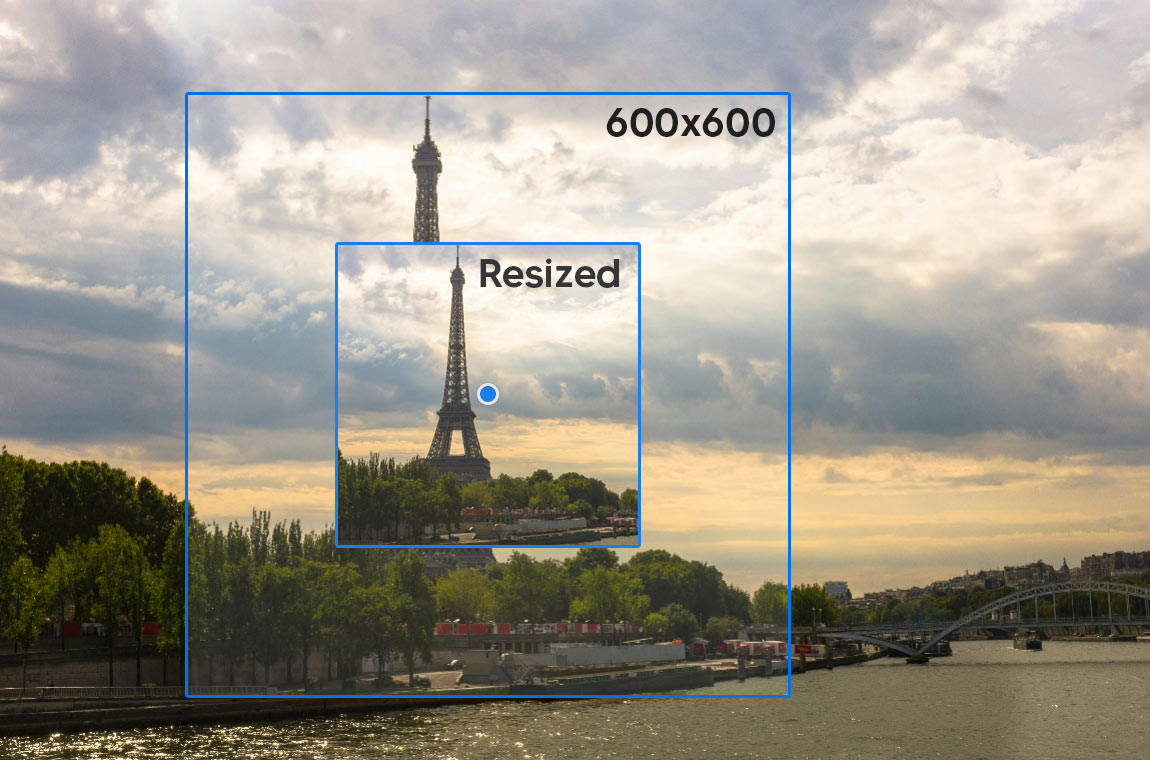
- First, you need to choose the size of your crop window,
300x300 in your context.
- Second, an image you want to crop. On this, you can access the
width and height for our calculations.
- Third, the focal point data, which you get using
image.presentation.focal_point. You can access the x and y properties for the focal point percentage position on both axes.
Using all of this, we are able to correctly calculate everything we need. We will use the image_url filter as always. We will use the crop: 'region' property on this one.
Note: In case no focal point is present, be sure to have a fallback.
Here is the gist of it:
{{ image | image_url: height: {crop_window_height}, width: {crop_window_width}, crop: 'region', crop_height: {crop_height}, crop_width: {crop_width}, crop_top: {crop_top}, crop_left: {crop_left}
And the details:
{crop_window_height} - The desired height of the image{crop_window_width} - The desired width of the image{crop_height} - The original image height that goes inside the crop window{crop_width} - The original image width that goes inside the crop window{crop_top} - The original image size offset on the Y axis{crop_left} - The original image size offset on the X axis
Note: Using different ratios between crop_window_height/width and crop_height/width parameters leads to altered image aspect ratios returned
Use this part of the documentation to get familiar with the different parameters of the filter.
From there, you should be able to calculate everything you need
{crop_window_height} - 300(px) as stated before{crop_window_width} - 300(px) as stated before{crop_height} - 300(px){crop_width} - 300(px){crop_top} - See below{crop_left} - See below, adapt for x-axis
{% liquid
  assign crop_height = 300
  assign crop_half_height = crop_window_height | divided_by: 2.0
  assign focal_percentage_y = image.presentation.focal_point.y | divided_by: 100.0
  assign offset_to_center = image.height | times: focal_percentage_y | round
  assign crop_top = offset_to_center | minus: crop_half_height
%}
Note: Using 600 as crop_height/width will give you a zoomed out result, without altering the returned image size
Now, the last thing to keep in mind are (literal) edge-cases. Sometimes, when the focal point is close to the border of the image or your target crop size is bigger than the source image, the crop window might fall outside of the limits. Because of this, the aspect ratio of the returned image will be changed (if 50% of the width is off limits, you will get an image with 50% of the width). Because of this, you need to prepare and recalculate accordingly !
Note: A quirk appeared when I was researching on the topic
{% liquid
  assign image = images['image-handle.jpg']
  echo image.presentation.focal_point
  # If no set focal point → "50% 50%"
  # If set focal point → "x% y%"

  assign product_image = product.featured_image
  echo product_image.presentation.focal_point
  # Whether focal point is set or not → "null"

  # product.media (when the media is an image) works correctly as a replacement
%}
@Liam-Shopify, you might wanna have a look with the teams 
Nothing indicates in the docs that the product_image would not return focal point data